Why Sharing Raw Notion Links Hurts Your Professional Image
You can build a great workflow in Notion—but raw sharing links often feel messy for clients. The good news: you can keep your Notion system and still deliver a clean, branded experience. Here's why raw links fall short, and the smarter alternative.
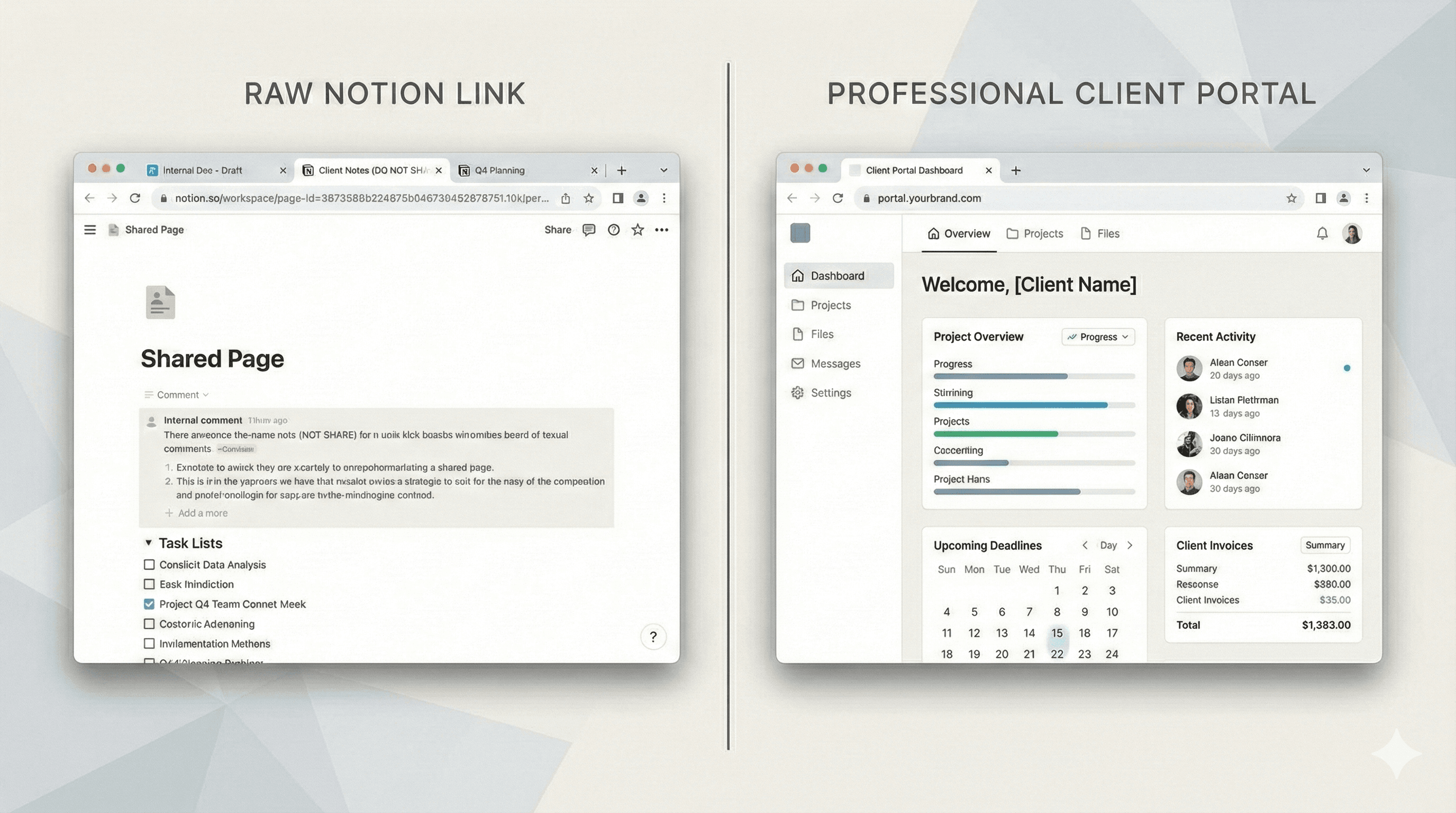
Picture this: you've organized a client's project perfectly in Notion—tasks, timelines, deliverables, all in place. You share the link expecting a clean update. Instead, the client gets a busy interface that feels more like your workspace than theirs.
The result is subtle but real: clients feel overwhelmed, uncertain about where to look, and less confident in the experience. That's the gap a client-ready portal closes.
The Hidden Costs of Raw Notion Sharing
While Notion is powerful for internal organization, sharing raw pages with clients can create confusion, security concerns, and an unprofessional impression that costs you credibility and potentially clients.
Problem #1: Information Overload
When you share a Notion page, clients see everything you see: the sidebar with all your other pages, random database views, your internal notes, and navigation that makes sense to you but not to them.
What clients actually see:
- Notion's complex interface with dozens of unfamiliar buttons - Your entire workspace structure in the sidebar (often distracting) - Database views that aren't filtered for their specific needs - Internal comments and notes meant for your team - Navigation breadcrumbs that lead to irrelevant pages
The result? Instead of focusing on their project progress, clients spend mental energy trying to understand Notion's interface. Many simply give up and ask you to email them updates instead.
"I shared our project tracker with a client and they responded asking if I could just send them a PDF instead because Notion was 'too complicated.' I realized I was making them do work just to see their own project status."
Problem #2: Lack of Client-Specific Filtering
Here's a scenario that happens more often than you'd think: You share your "Tasks" database with Client A, but they can see tasks for Clients B, C, and D as well. Even if you try to filter the view, clients often accidentally change filters or see information they shouldn't.
What Goes Wrong
- • Clients see other clients' confidential information
- • Accidentally modified filters show irrelevant data
- • Clients can edit or delete content by mistake
- • No way to control what clients can and can't see
What Should Happen
- • Automatic filtering to show only relevant content
- • Read-only access with controlled interactions
- • Clean, focused interface showing only what matters
- • Professional branding that reinforces your expertise
Problem #3: Security and Privacy Concerns
When you share Notion pages, you're giving clients access to your workspace. Even with permissions set correctly, this creates potential security issues:
- Clients might accidentally share the link with others
- Former clients retain access unless manually removed
- No audit trail of who accessed what and when
- Difficult to revoke access granularly
- Your workspace structure becomes visible to outsiders
Problem #4: No Brand Control
Perhaps most importantly for your business, sharing raw Notion pages means clients interact with Notion's branding, not yours. Every touchpoint should reinforce your brand, but instead clients see:
- • Notion's logo and interface, not your brand colors
- • Generic URLs (notion.so/...) instead of your domain
- • No opportunity to showcase your professionalism
- • Missed chances to reinforce your expertise and value
The Professional Alternative
The solution isn't to abandon Notion — it's to keep using it for your internal workflow while creating professional client-facing portals. Here's what the ideal setup looks like:
The Professional Portal Approach
For You (Internal)
- • Keep using Notion exactly as you do now
- • All your databases, workflows, and organization
- • Full control and flexibility
- • Team collaboration features
For Clients (External)
- • Clean, branded portal on your domain
- • Only their specific project information
- • Simple, intuitive interface
- • Action buttons for approvals and feedback
Real-World Example
Take Maria, a web design freelancer. She used to share her Notion project pages directly with clients. Here's what changed when she switched to professional portals:
Before (Raw Notion)
- • Clients called asking "how do I use this?"
- • 3 clients accidentally saw each other's projects
- • Lost a potential client who said it "looked unprofessional"
- • Spent 2+ hours per week on status update emails
After (Professional Portal)
- • Clients comment on how "polished" everything looks
- • Zero data security incidents
- • Won 3 new clients who were impressed by the portal
- • Status updates happen automatically
Making the Switch
The good news is that transitioning from raw Notion sharing to professional portals doesn't require changing your workflow. Tools like Portalwith sync directly with your existing Notion databases, automatically creating client-specific portals that stay updated in real-time.
Quick Implementation Checklist
- Add a "Client" property to your existing databases
- Set up automated portal generation
- Configure your branding and domain
- Share professional portal links instead of raw Notion pages
The Bottom Line
Your internal organization system shouldn't be your client-facing interface. While Notion is perfect for managing your work, raw Notion sharing creates unnecessary friction and can hurt your professional image.
Professional portals solve this by giving you the best of both worlds: the power and flexibility of Notion for your internal workflow, plus polished, branded client experiences that build trust and reinforce your expertise.
Ready to Upgrade Your Client Experience?
Stop losing credibility with confusing Notion shares. Create professional client portals that sync with your existing workflow and reinforce your expertise.
Remember: Every client interaction is an opportunity to reinforce your professionalism. Make sure your tools are working for you, not against you.